
Replace a Heater
https://support.focalheat.co/replace-heaters/
On this page
- Before you start
- Watch the video
- Open the rail end
- Remove the old heater
- Install the new heater
- Close up the rail
- Reassign the slot
- Confirm the new heater
- Final checks
Before you start
This covers swapping a failed or damaged heater for a replacement on a rail that is already installed and running. You remove the old heater, install the new one and then assign the new heater to the slot in the Focal Control app.
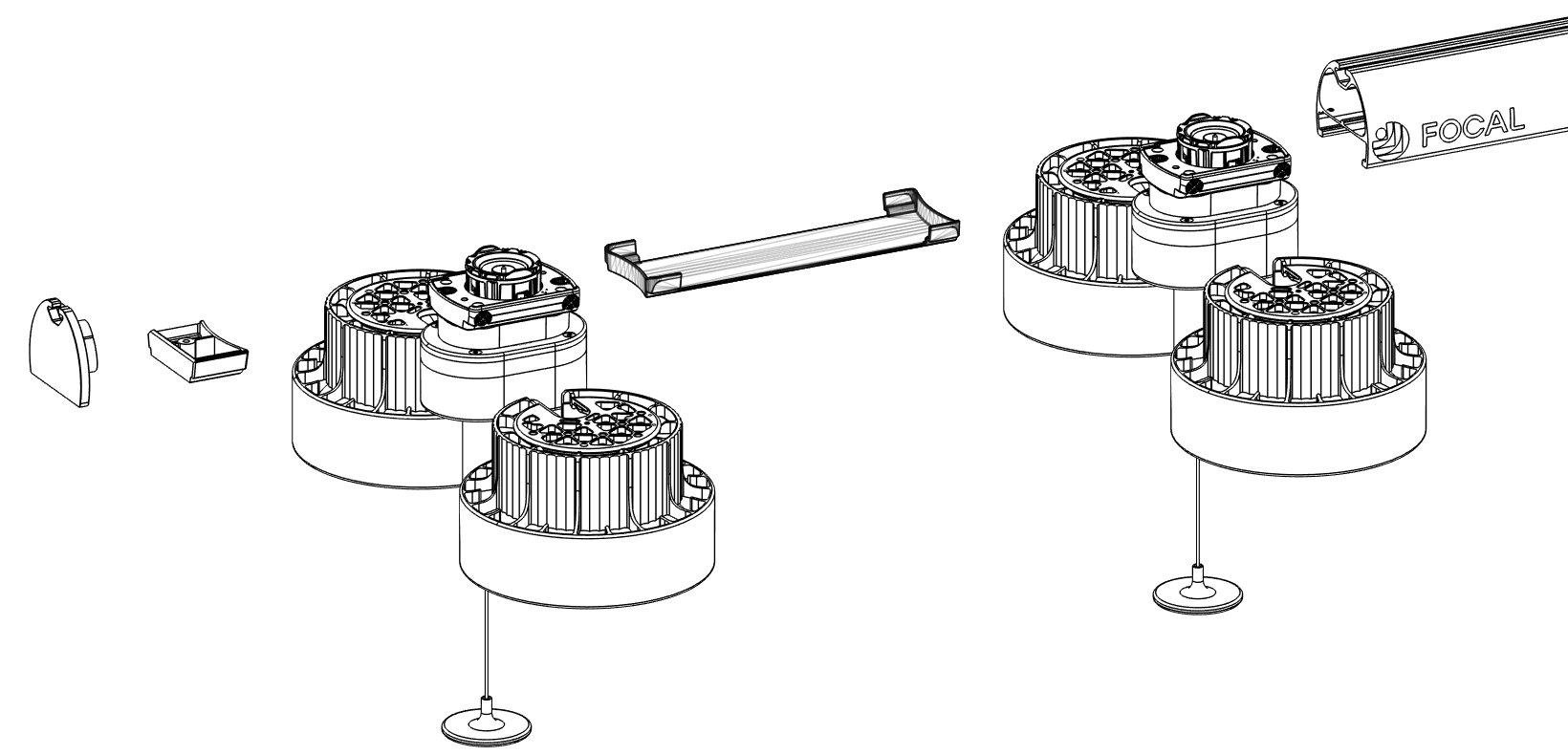
Note which slot the failed heater is in. Put every heater you take off back in its same slot, so the slots in Focal Control still match the rail.
You need:
- The replacement heater
- A phone with a camera and internet
- The restaurant's Focal Control app link and password from Focal
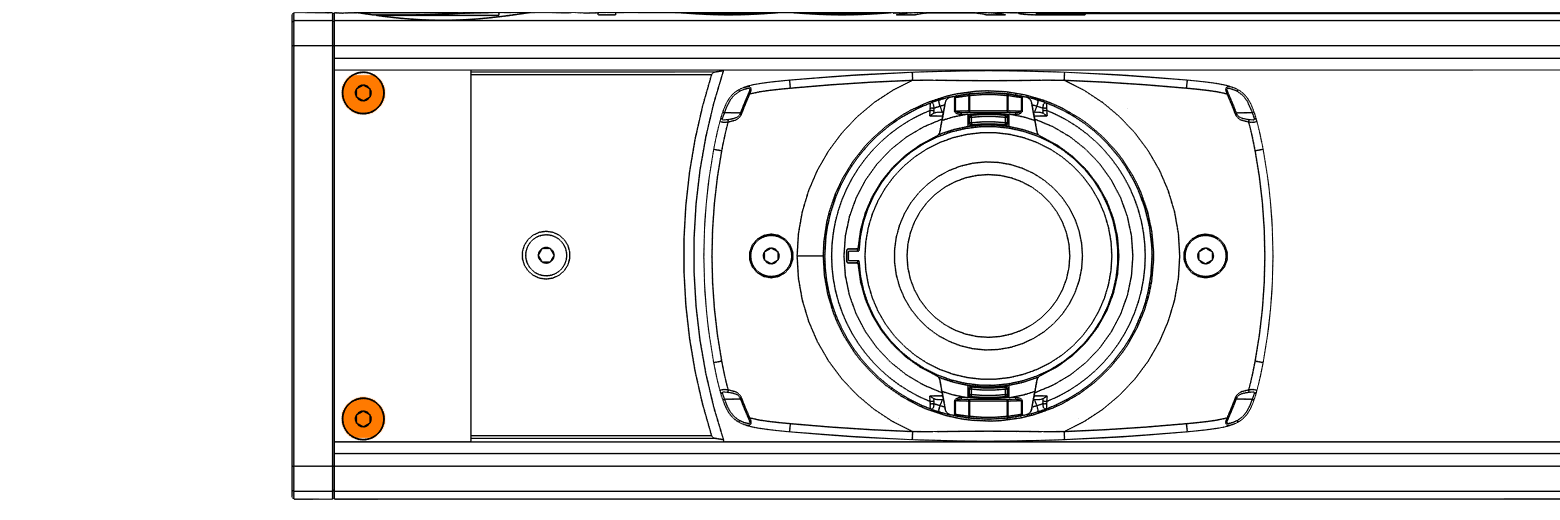
- A 2 mm hex wrench for the bumper and end cap screws
Handle each heater by its body, keeping the emitters and grille clear.
Grab or set a unit down on the grille or reflector.
Let the old heater cool before you touch it.
Watch the video
Watch the full video once before you start. Refer to the step-by-step written instructions below.
 Watch this step at https://support.focalheat.co/replace-heaters/#swap-video
Open the rail end
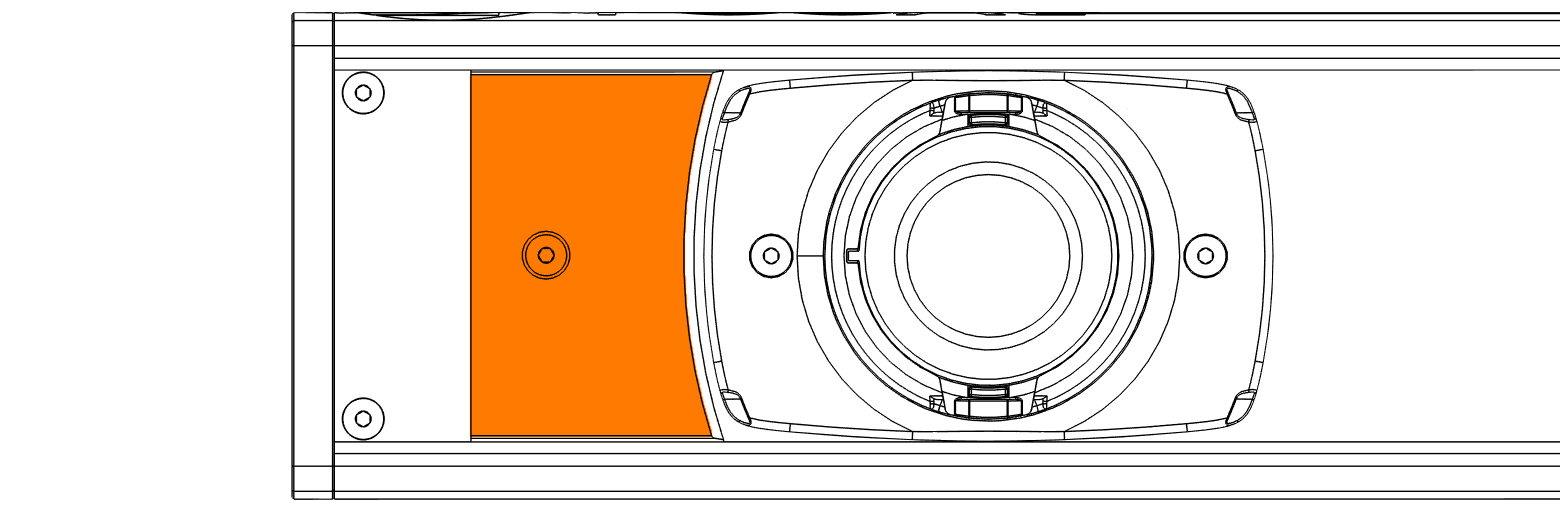
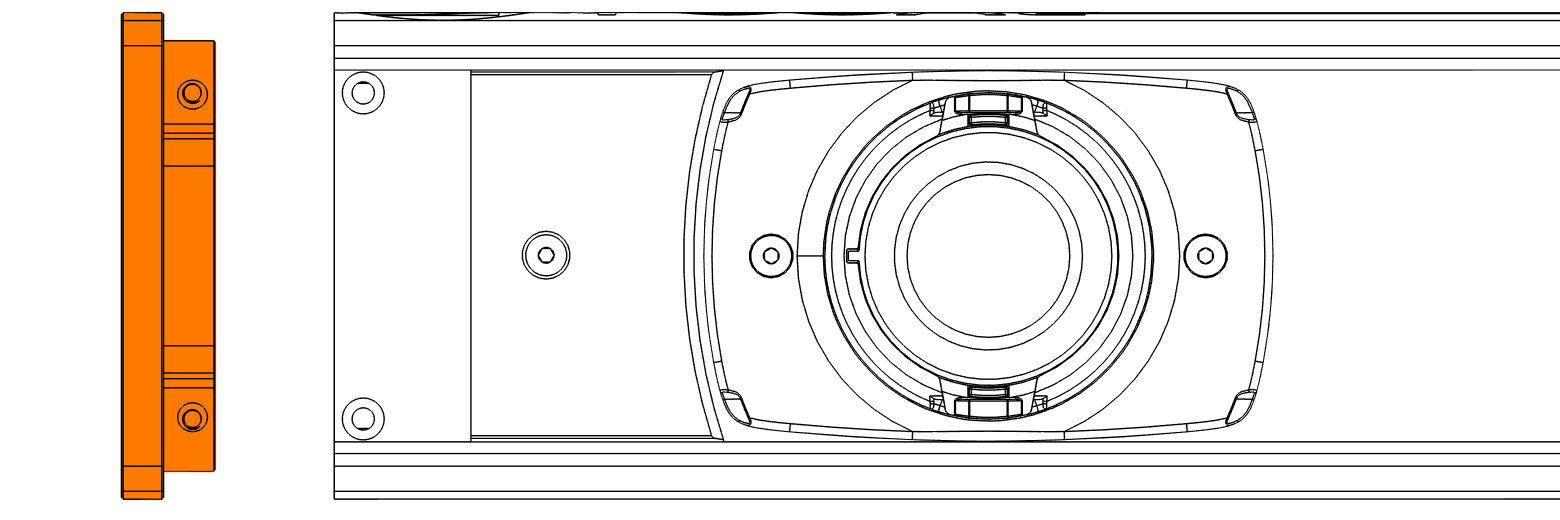
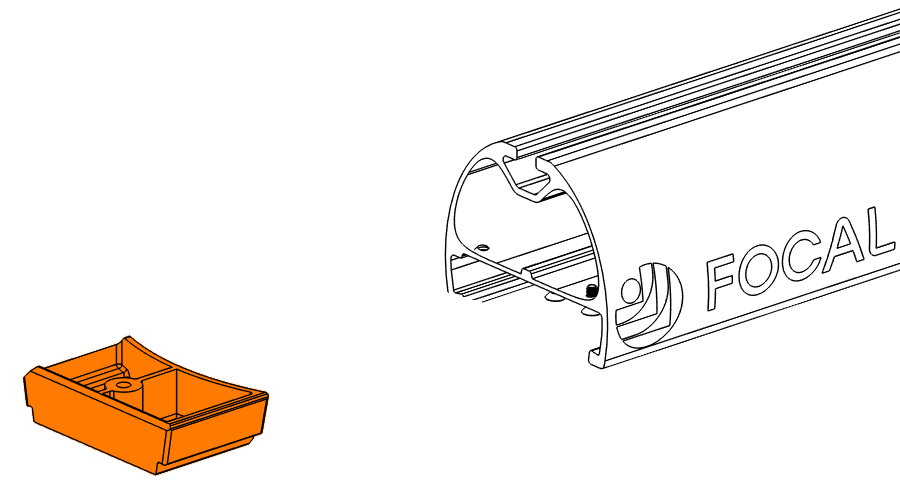
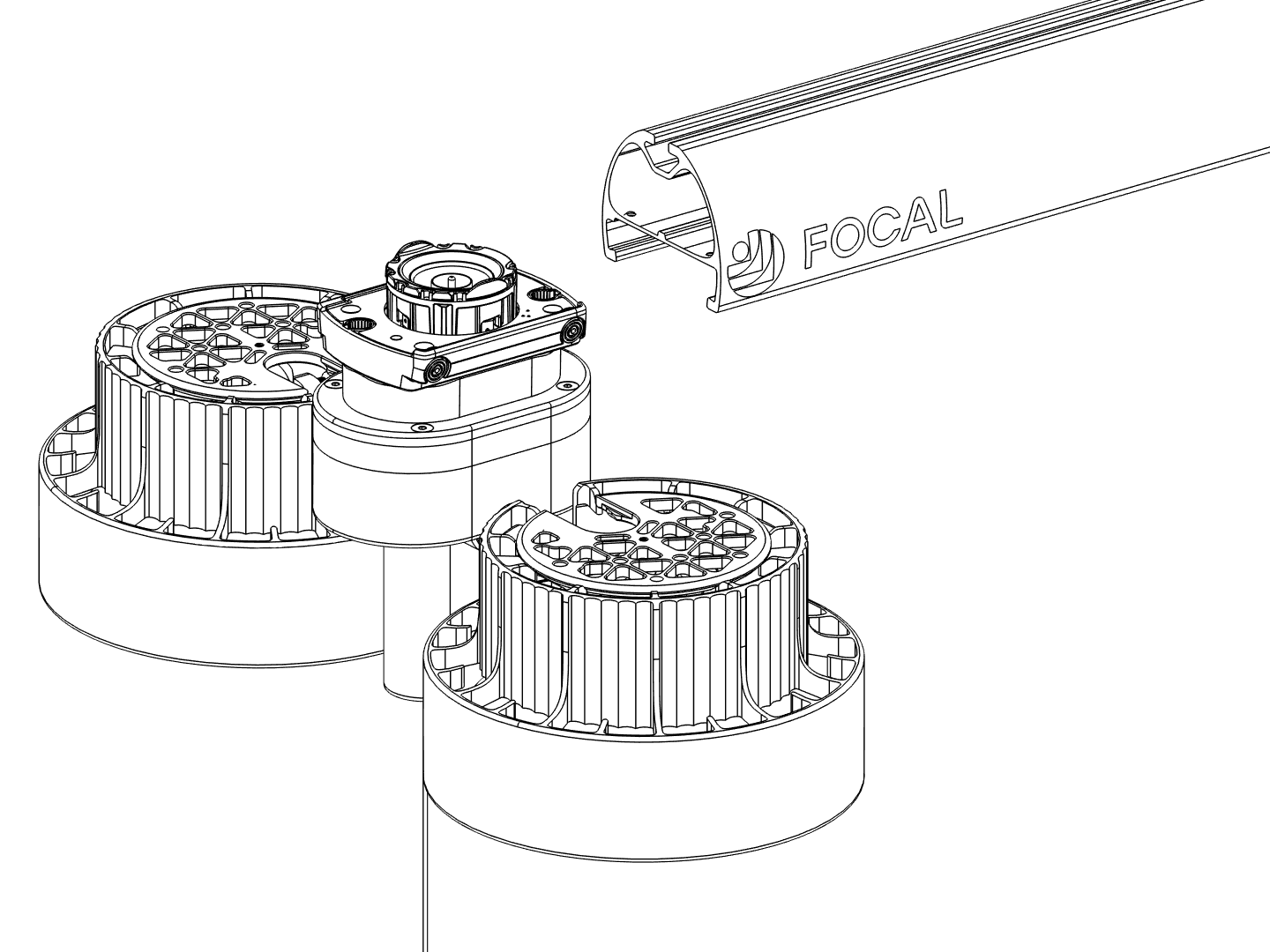
Work at the opening end of the rail, opposite the cord-exit end. This is the end with the removable end cap (orange).
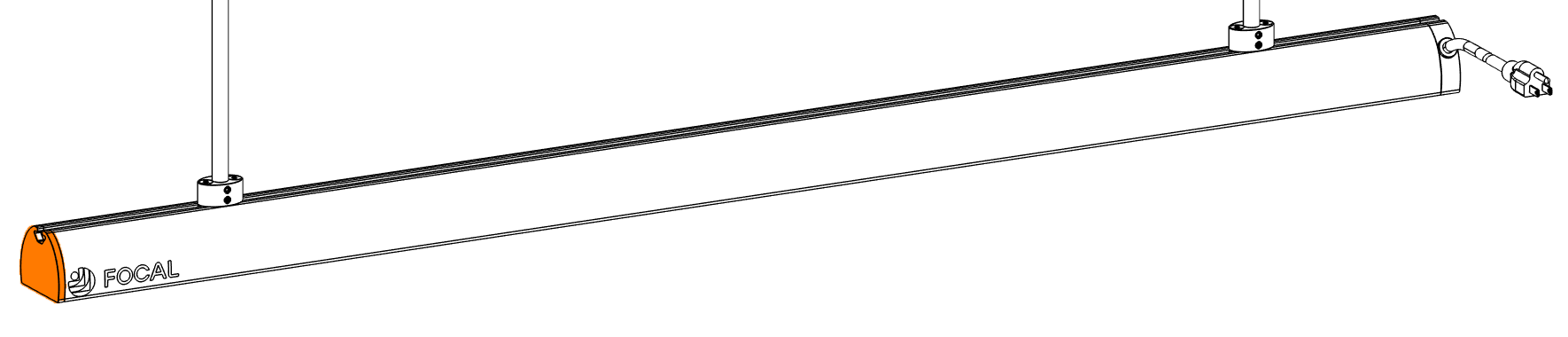
Look up at the underside of the rail.
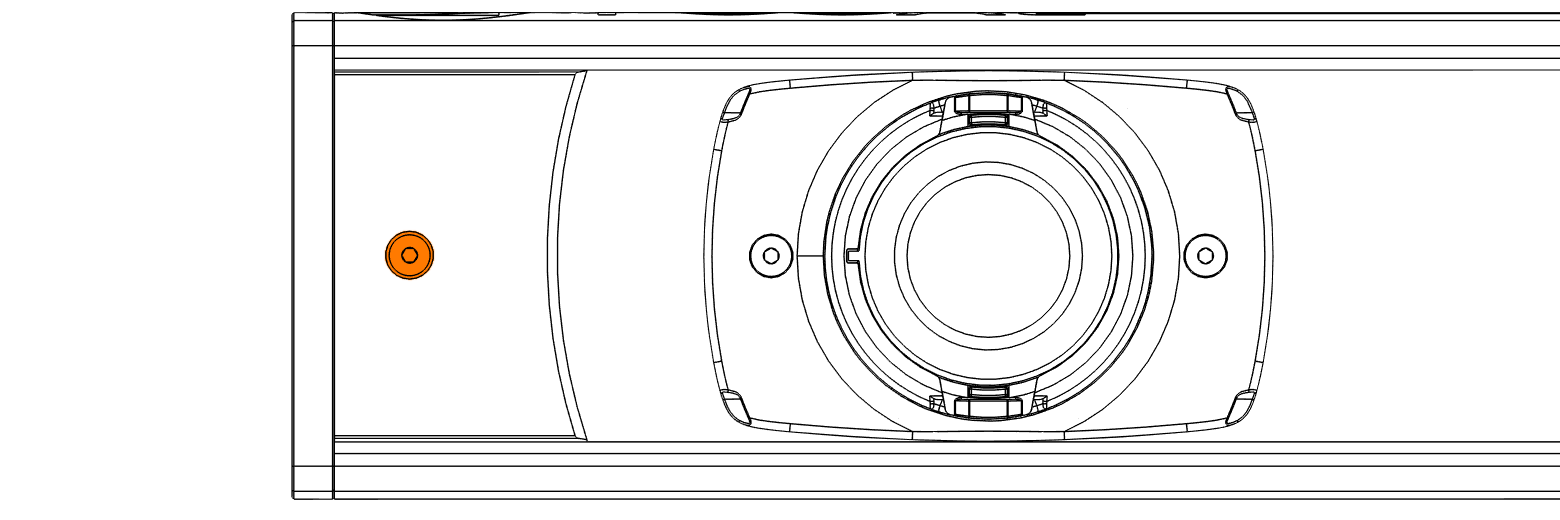
Remove the old heater
Slide the bumper off the opening end of the rail.
Pull each heater's string down firmly and slide it off, then the spacer behind it. Keep going until the failed heater is off. Lay everything out in the order it came off, and set the failed heater aside to return to Focal.
Install the new heater
Take the replacement out of its box. Leave the rest of the packaging on until the heater is started onto the rail.
Heaters slide on from the opening end of the rail. The heater only fits one way: hold it with the pull string on the trailing side, away from the rail.
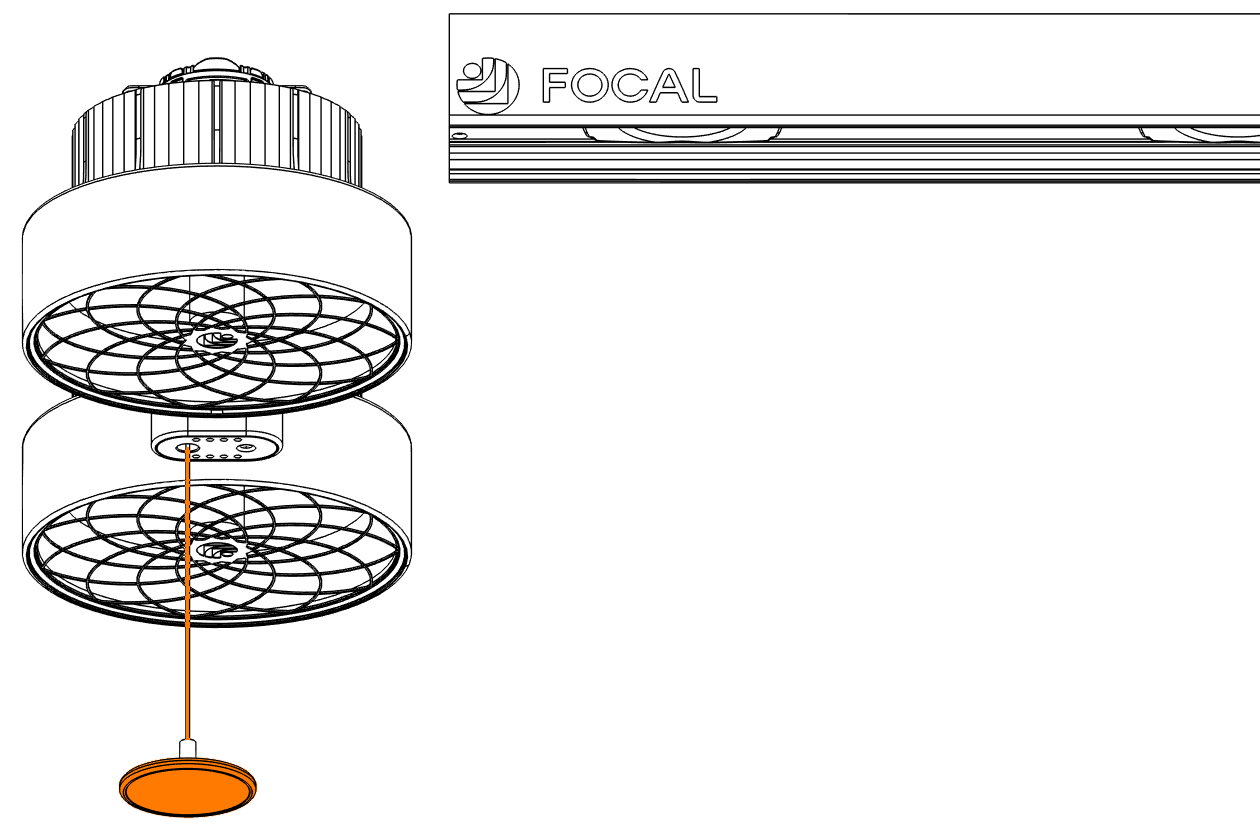
The lug (the round power connector on top of the riser) must be down for the heater to slide onto the rail. A new heater ships with a small plastic clip holding the lug down. It slides off by itself as the heater goes onto the rail. If there's no clip and the lug is up, pull the pull string down until the lug drops.
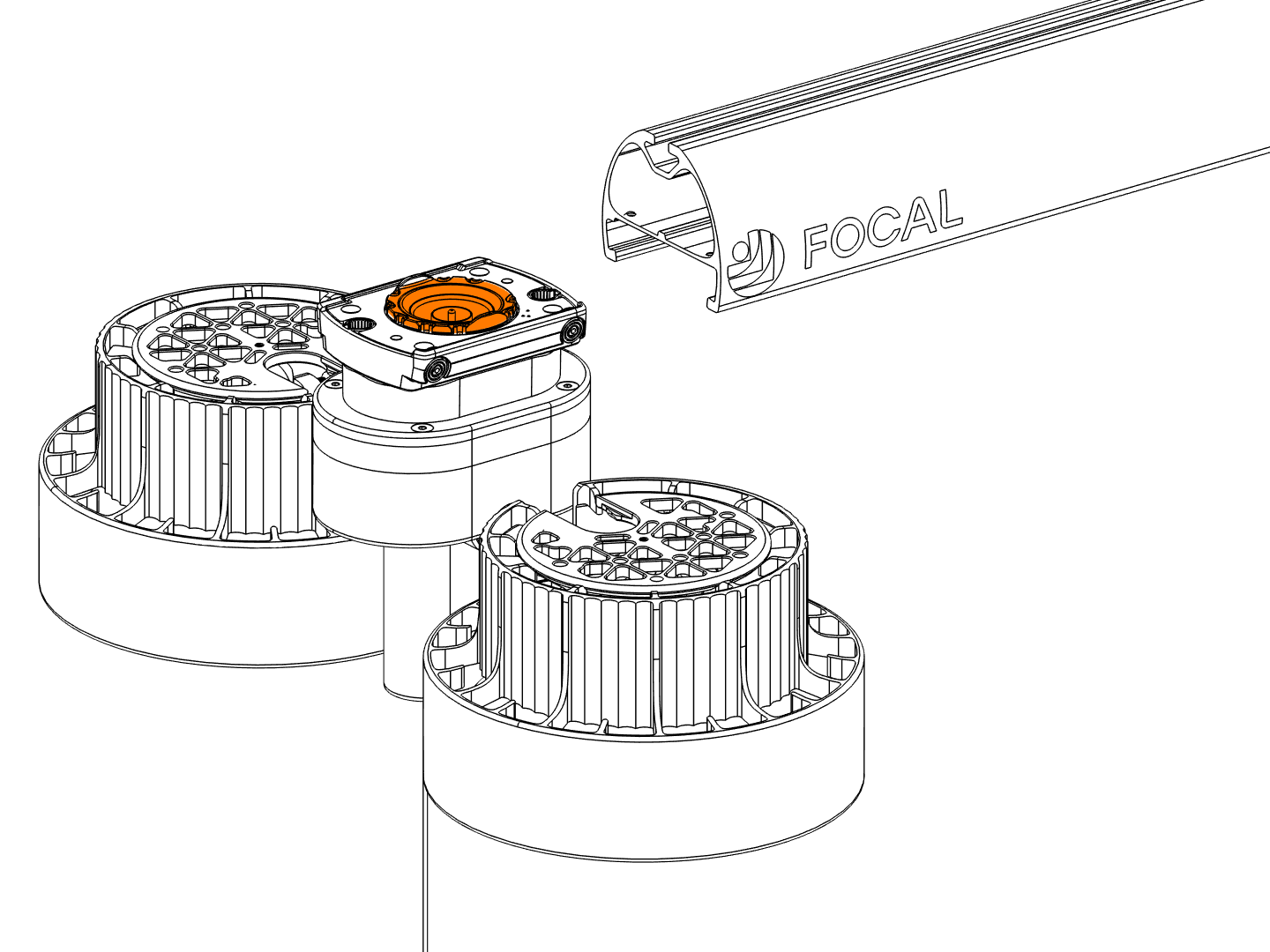
Slide the heater onto the rail and remove the rest of the packaging. Pull the string down firmly to release the heater, slide it to the slot the old one came out of, and let go. It locks in and its LEDs light.
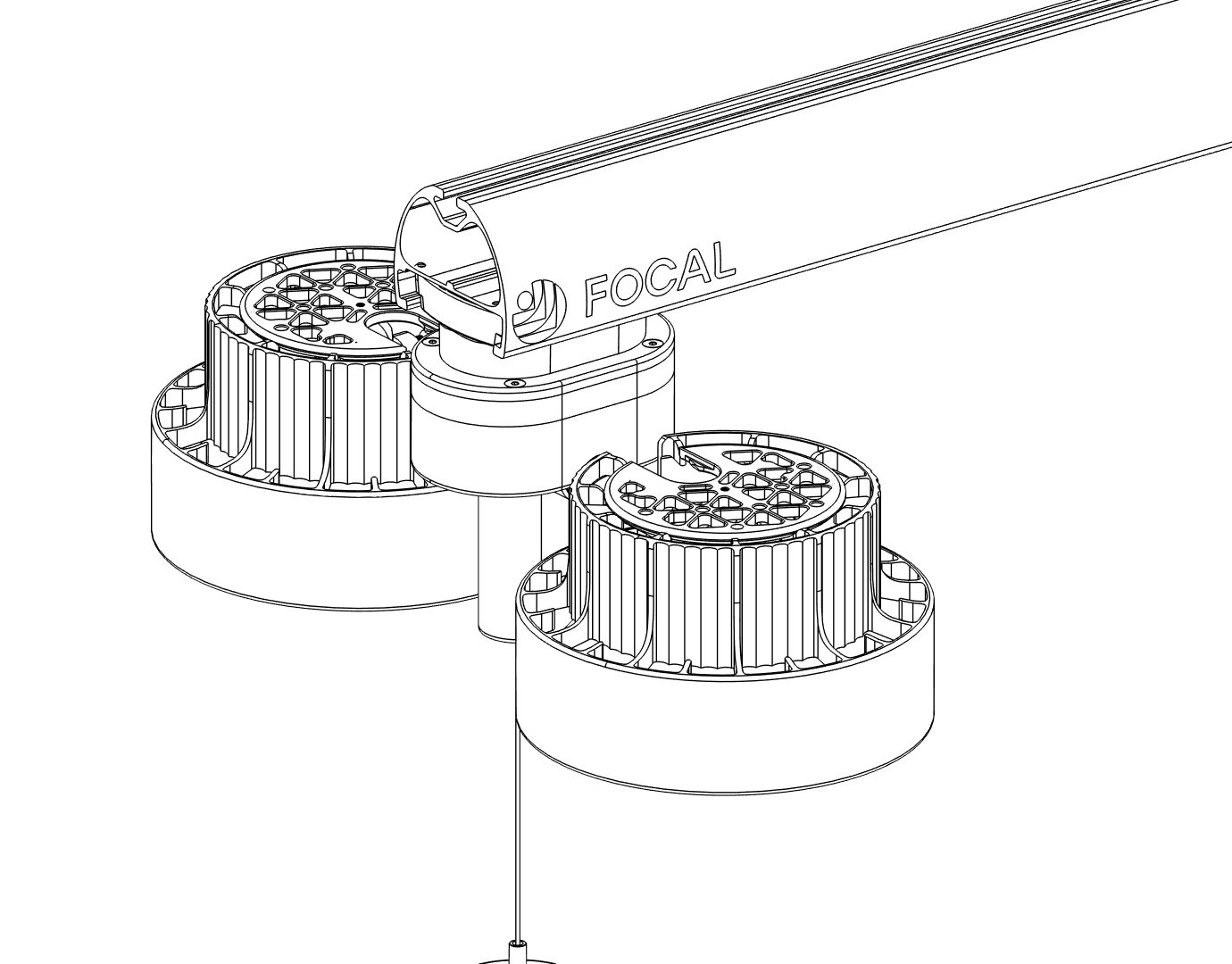
Slide the heaters you removed back into their original slots, in the same order, with one spacer between each pair. Since they return to the same slots, their assignments stay correct. Only the new heater needs assigning.
Close up the rail
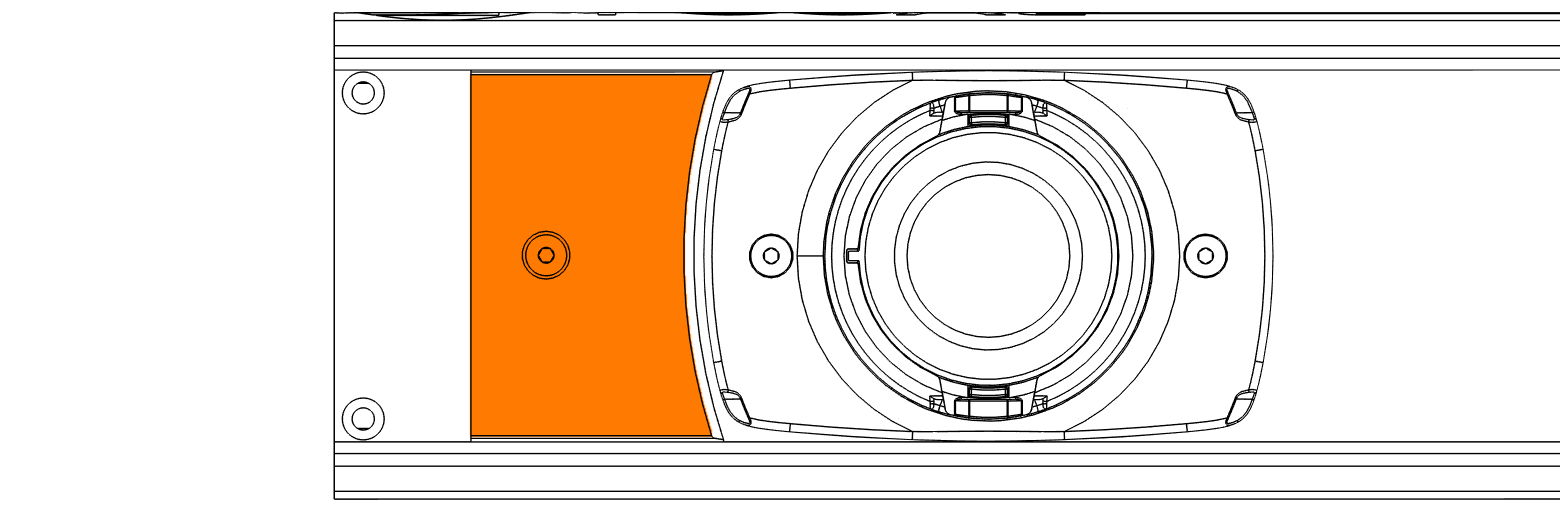
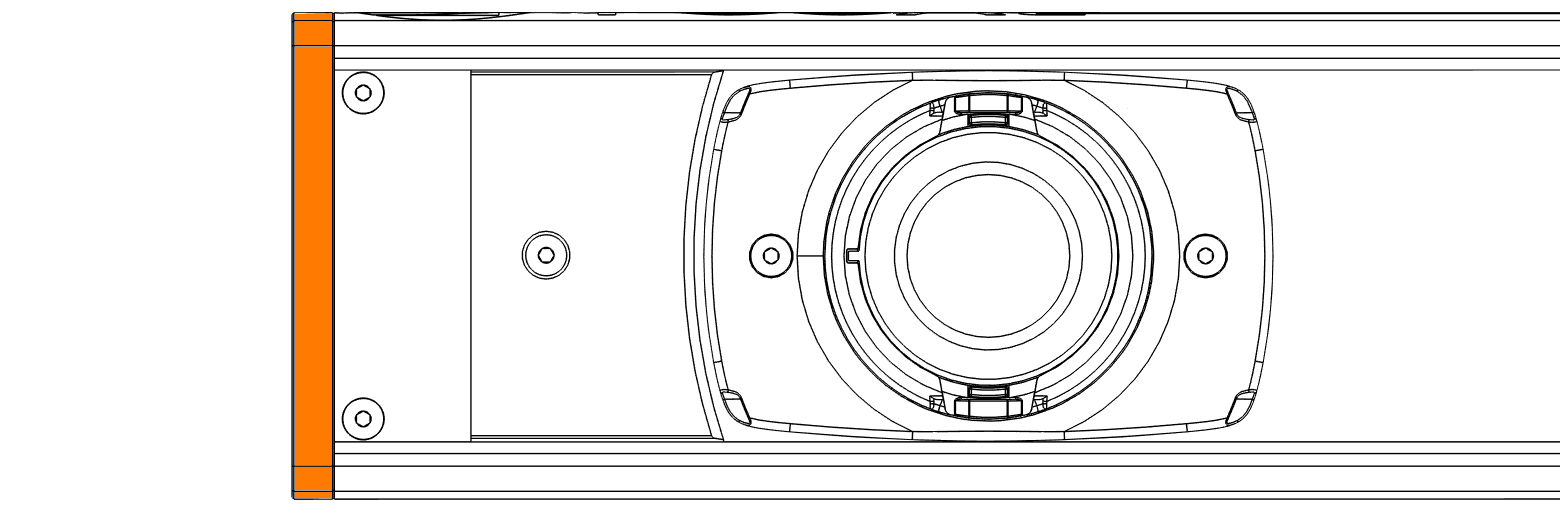
Reassign the slot
The old heater’s slot in the Focal Control app still points at the unit you just removed, so you need to point it at the new heater. If every other heater went back in the same order it came off, leave those slots alone, since their assignments are still right. If you mixed up the order, reassign every slot on that rail the same way, so each slot points at the heater actually sitting in it.
The software layout must match the rail. If the slot points at the wrong heater, staff will turn on the wrong unit and think the system is broken.
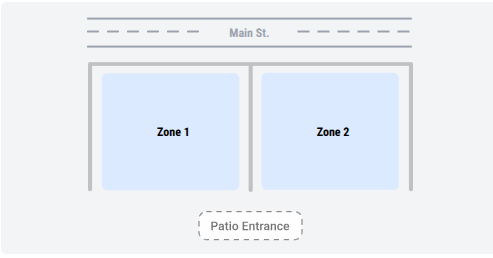
Sign in with the link and password from Focal. The restaurant map shows how the zones are laid out relative to the street and the patio entrance. Get oriented here before you start scanning, so you know which zone you are standing in.
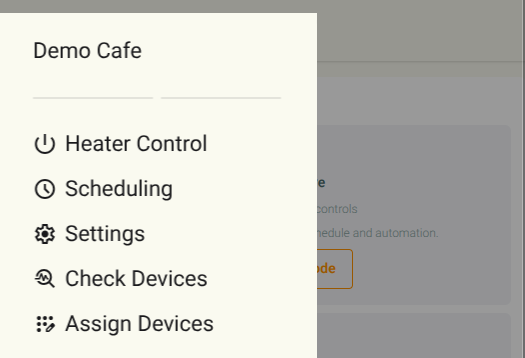
Tap the menu icon in the top left and choose Assign Devices.
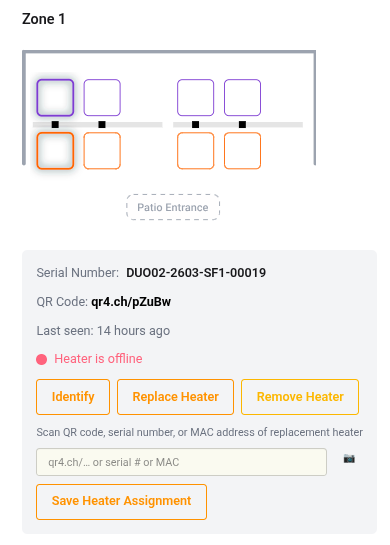
Tap the slot the old heater came out of. Each heater shows on the map as two squares, one per heating spot; tap either one. The panel below shows the old heater's serial number. Since you've already removed the old heater from the rail, it's expected that it says Heater is offline. Tap Replace Heater, then tap the camera icon next to the field that opens and allow camera access if your phone asks.
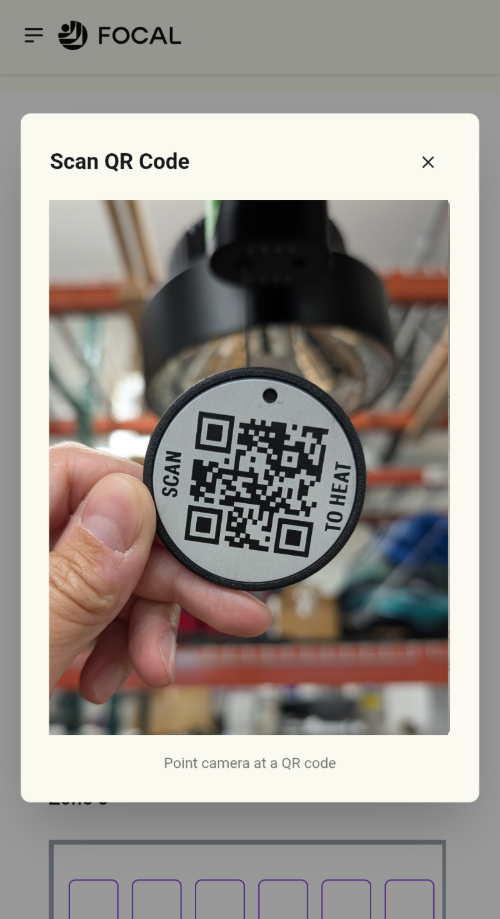
Point the camera at the QR code on the new heater: the round SCAN TO HEAT tag on the end of its pull string. The field fills in with the heater's code once it reads.
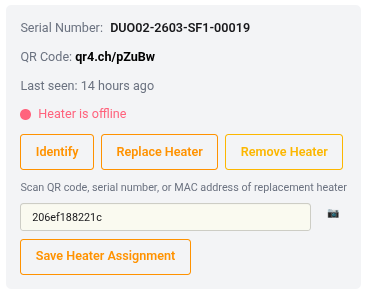
Tap Save Heater Assignment. The slot doesn't point at the new heater until you save, so don't skip this.
Confirm the new heater
Open the menu in the top left and choose Heater Control.
Tap the slot you just reassigned, then tap 1, 2, or 3 for either spot. Look up at the new heater. Its LEDs should change to match the level you picked and it should start putting out heat. If a different heater responds, go back to Assign Devices and fix the assignment.
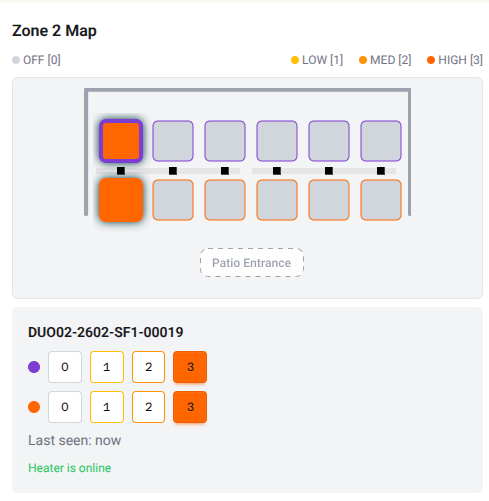
Tap 0 to turn the heater off so nothing is left running before you go.
Final checks
- The new heater sits in the same slot the old one came out of
- Every other heater is back in its original slot with a spacer between each pair
- The reassigned slot commands the new heater and no other
- Bumper back on the rail, end cap screwed on, and bumper screw tightened
If the new heater won’t come online or the wrong unit responds, see Troubleshooting.