
Assign Heaters
https://support.focalheat.co/register-assign-heaters/
On this page
- Before you start
- Assign each heater to its slot
- Confirm every assignment
- Final checks
- Install complete
Before you start
Assigning heaters allows staff to control heaters individually in the Focal Control app.
You need:
- A mobile phone with internet and a camera.
- The restaurant’s Focal Control app link and password from Focal.
- Every heater already seated in its rail slot and powered on.
- About 30 minutes.
Heaters can only be assigned while the site is online. If heaters won't assign or don't respond, check that the site's Focal Hub, or networking box on older systems, is plugged in and has internet. If it does and heaters still won't assign, contact Focal.
The software layout must match reality. If a heater is assigned to the wrong slot, staff will turn on the wrong heater and think the system is broken.
Assign each heater to its slot
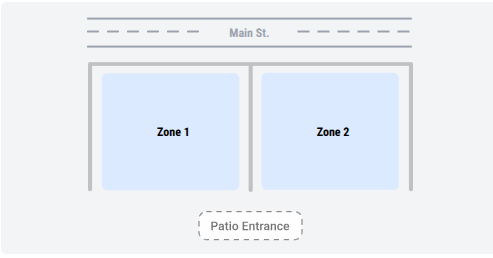
Sign in with the link and password from Focal. The restaurant map shows how the zones are laid out relative to the street and the patio entrance. Get oriented here before you start scanning, so you know which zone you are standing in.
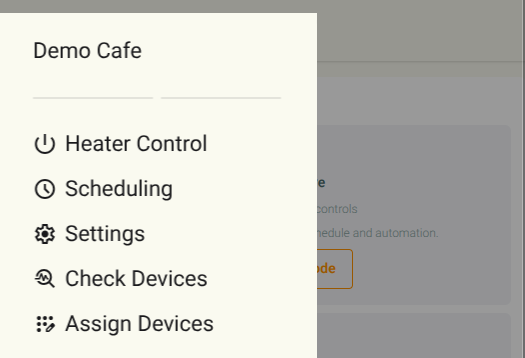
Tap the menu icon in the top left and choose Assign Devices.
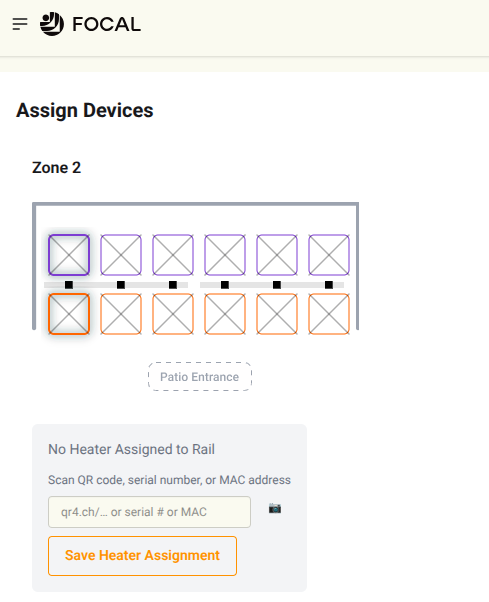
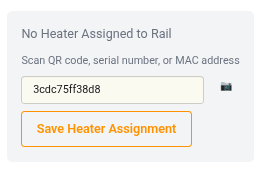
Assign Devices shows every zone, rail, and slot already created for this restaurant. Each heater shows on the map as two squares, one per heating spot. A slot marked with an X has no heater assigned yet. Tap either square of the slot you're standing under. The panel below reads No Heater Assigned to Rail, with a field for the QR link, serial number, or MAC address.
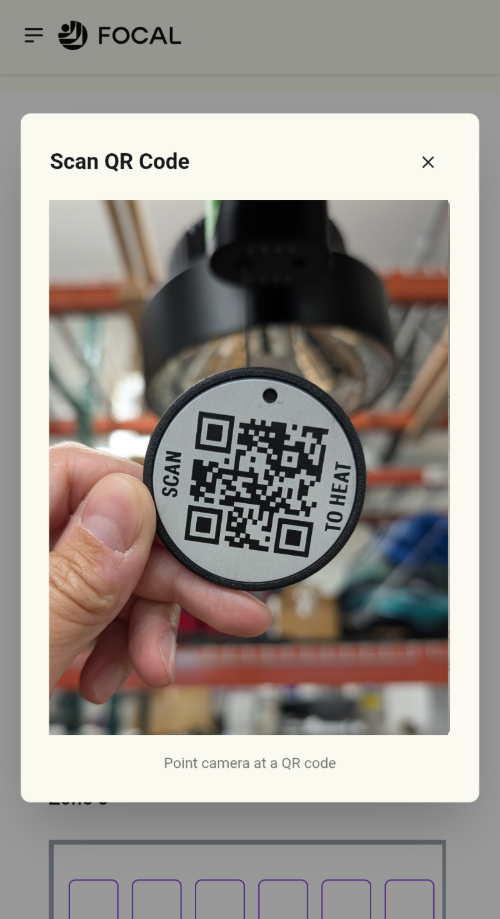
Tap the camera icon and allow camera access if your phone asks. Point the camera at the QR code on the heater in that slot: the round SCAN TO HEAT tag on the end of its pull string. The field fills in with the heater's code once it reads.
Tap Save Heater Assignment. The heater isn't assigned to the slot until you save, so don't skip this. Once it saves, the X on that slot clears.
Work along the rail slot by slot. For the next zone, scroll down. When you are done, all slots should have a heater assigned.
Confirm every assignment
After assigning every heater, it’s critical to confirm each heater was assigned to the correct slot so that the right heater turns on when commanded.
Open the menu in the top left and choose Heater Control.
Tap the first slot on the zone map. It highlights, and the heater's serial number and status appear below with heat level controls at 0.
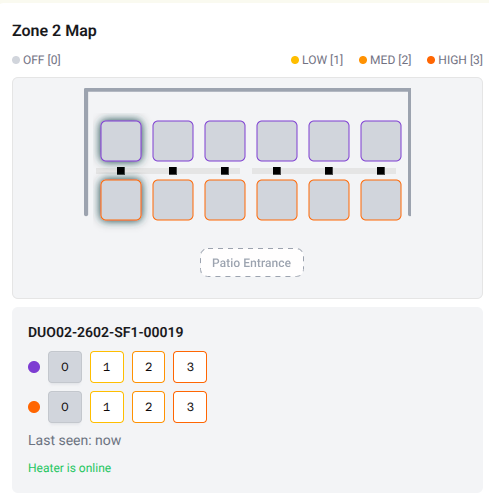
Tap 1, 2, or 3 for either spot. Look up at the heater in that slot: its LEDs should change to match the level you picked, and it should start putting out heat. If a different heater responds, the wrong heater was assigned to the slot. Go back to Assign Devices and correct the assignment.
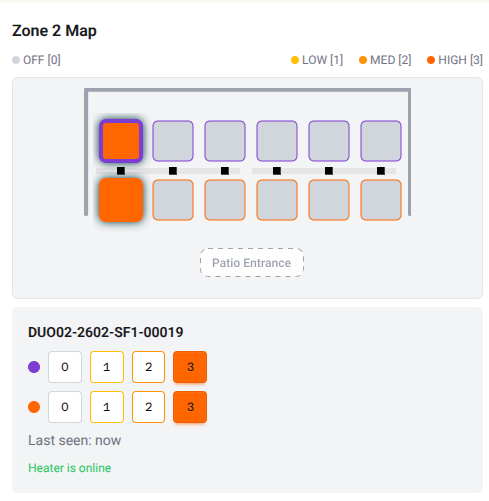
Repeat for each slot in each zone. Tap 0 on each heater to turn it off before you leave.
Final checks
- No slot in any zone still shows an X
- Each heater is assigned to the slot it physically sits in
- Every heater responded at a non-zero level with LEDs matching
- Every heater set back to 0 before leaving site
Install complete
That’s the last step of the install. Walk the restaurant through System Setup & Control before you go, so staff can run the system themselves.
If anything won’t come online or behaves oddly, see Troubleshooting. For service, replacements, or full specifications, see Warranty & Service.